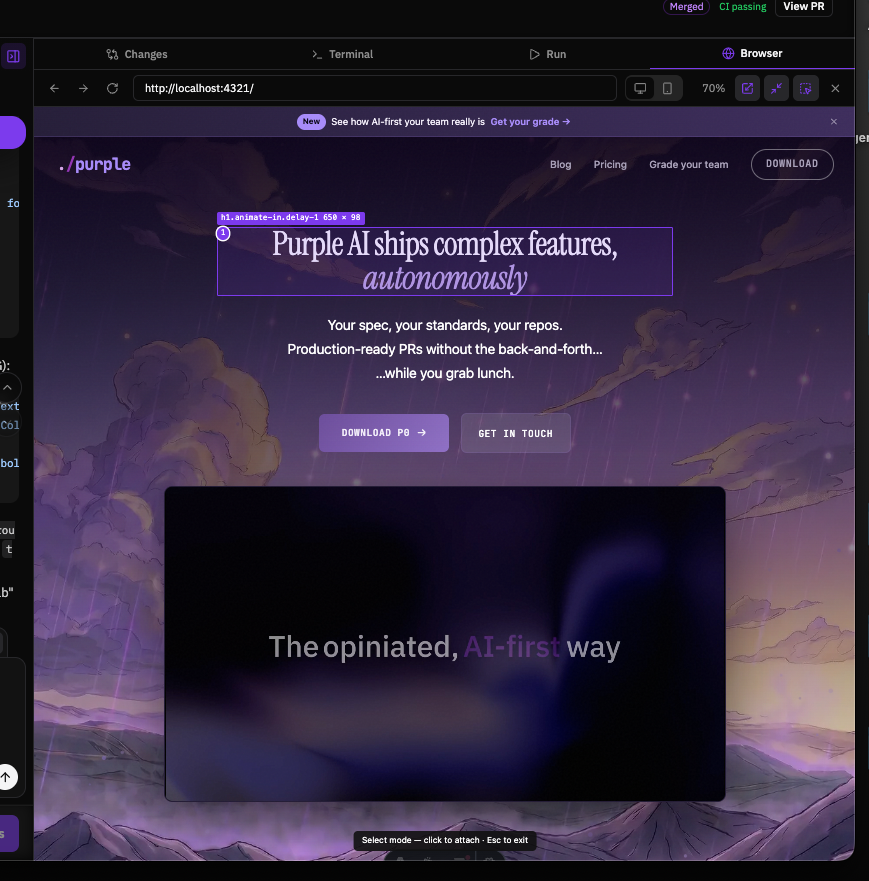
Every frontend conversation with an AI agent hits the same wall. You can see the problem. The price badge is misaligned, the button is the wrong shade, the card shadow is too heavy. Then you have to type it: “the button in the top right of the pricing card, no, the other card, the one below the header.” Three round trips later the agent edits the wrong file.
The richest signal you have is sitting right there on your screen, and it dies at the keyboard.
So we stopped translating. p0 now has a Browser tab, and the page itself is the prompt.
Your app, rendered inside p0
Next to Terminal, Changes, and Run there is now a Browser tab. It renders a live webpage inside p0. Not a screenshot, not an embed of limited use: a real browser surface.
Start your dev server from the Run panel and the Browser tab finds it on its own. p0 watches the processes it launches, notices when one starts listening on a port, and loads the URL for you. No copying localhost:5173 from terminal output. You can also type any URL and preview whatever you want.
The page scales to fit the panel, so a full desktop layout is readable even in a side panel. There is a desktop and a mobile preset, and the mobile one is not a narrow window pretending to be a phone. It runs real device emulation with a mobile viewport and a mobile user agent, so responsive sites render their actual phone layout. Zoom, reload, back and forward, and a maximize toggle round it out. When you open the tab, the panel grows to give the page room.
Select mode is the whole point
Here is the part that changes the workflow. Hit the Select toggle in the Browser toolbar and hover over the page. Every element under your cursor lights up with its name and size. Click one and p0 captures it:
- A cropped screenshot of exactly that element
- Its HTML and styles
- A stable selector for context
- And on React dev servers, the component name and the source file and line where it lives
That last one is the difference between “the agent searches your repo and guesses” and “the agent opens PricingCard.tsx:31 and edits it.” React’s development builds already stamp every element with its source location. p0 reads that and validates the path against your workspace, so the agent lands on the right line on the first try.
Click several elements and they stack up as numbered selections. Everything you picked lands in the chat composer as one attachment chip. Type “make these three buttons the same width,” hit send, and the agent receives your words plus the screenshots plus the exact code locations. You can even send a selection with no text at all and let the agent take a look.
Why we built it this way
The obvious shortcut would have been an iframe. An iframe cannot inspect a page on another origin, which is every local dev server, so selection would have been impossible. Instead the Browser tab is a real native browser view that p0 controls: it can inject the selection overlay into any page, capture pixel-exact screenshots of any region, and keep your preview cookies isolated from everything else, so logged-in dev apps render fine.
While in Select mode, clicks never reach the page. You can click a submit button to select it without submitting anything.
Try it
Update to the latest p0, open a session, and look for the Browser tab in the right panel. Start your app from the Run tab, flip on Select, and click the thing you want changed.
Then say what you want in one sentence. That was always the promise of this workflow. Now the pointing works too.